


TrueBond -Al Video Editor&Hug
4.691.00 Reviews
App Specs
- Version
- 1.6.1
- Updated On
- License
- Free
- Downloads
- 50,000+
- Developer
- KL Technology Limited
- Categories
- Art & Design
- Platform
- Android
Screenshots
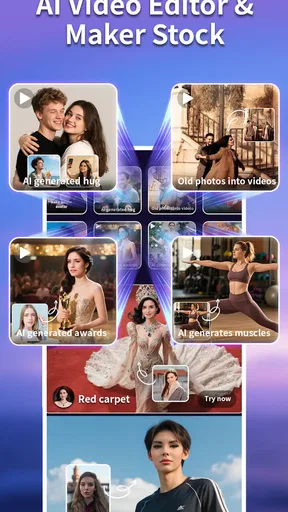
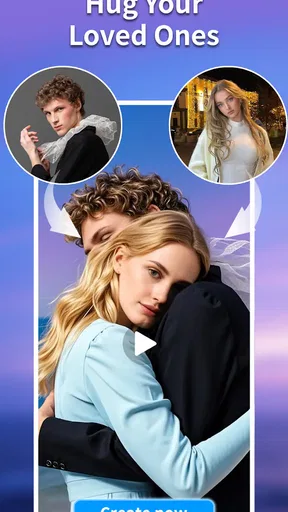
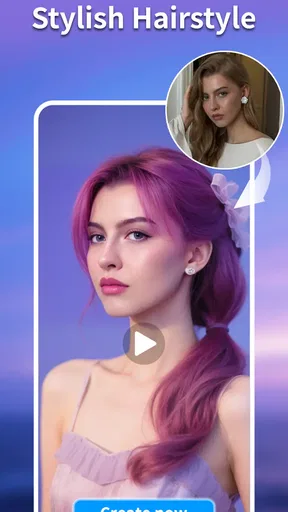
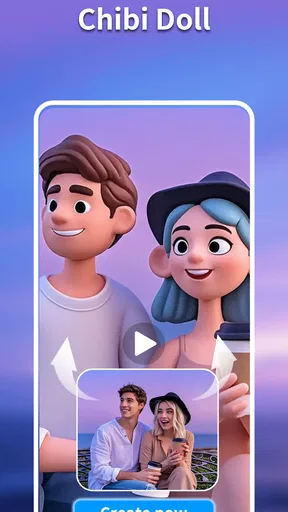
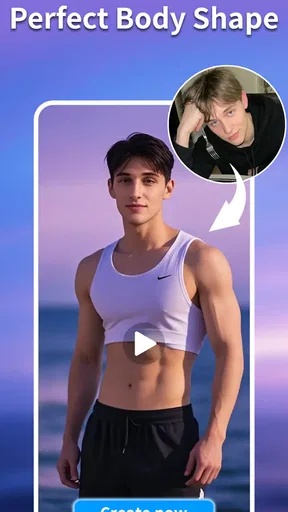
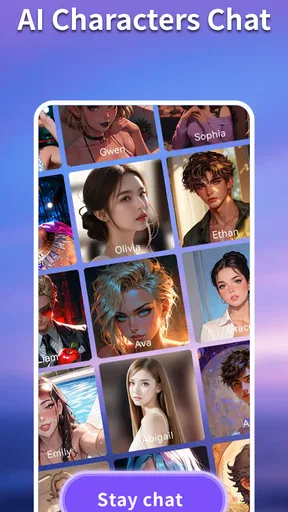
 Analysis by AppCompare
TrueBond -Al Video Editor&Hug is an AI-focused art and design app from KL Technology Limited that I found most interesting as a quick way to turn a simple idea into a short visual result. Rather than treating it like a full desktop editing suite, I see it as a lightweight creative tool for people who want to experiment with AI video without first learning a complicated timeline, effects library, or professional workflow.
That distinction matters. The app is free to install, carries a Teen content rating, and has reached over 50 thousand installs, so it is clearly aimed at casual discovery as much as serious creation. Its average score is 4.6 from roughly 460 ratings, with about 91 written reviews, which suggests a generally positive reception. I would still approach it as an exploratory mobile editor rather than a replacement for established video software.
After spending time with it, my strongest impression is that the experience depends on how comfortably you can describe an idea, choose a visual direction, and judge the result on a small screen. The app can be appealing for social posts, personal experiments, visual messages, and quick concept videos. It is less convincing for anyone who needs frame-by-frame control, highly predictable output, or a fully transparent editing process.
How clearly the app presents its creative workflow
I focus here on how clearly TrueBond presents its AI-led creative workflow, because that first impression shapes whether the app feels approachable or confusing. I also consider how a newcomer can make the process easier to judge before committing time to a more involved idea.
Readability and navigation for first-time users
The appeal of an AI video editor is that it can reduce the number of decisions a beginner has to make. Instead of starting with an empty timeline, I can think in terms of an idea, an image, or a visual mood. That makes the first step feel less intimidating than opening a traditional editor filled with tracks, trimming handles, keyframes, and technical settings.
For a new user, the most useful approach is to begin with one clear visual intention. A prompt such as “a quiet evening walk through a rainy city with warm shop lights” gives the app a more workable direction than a long paragraph containing several unrelated scenes. I found that this kind of short, concrete wording also makes it easier to understand whether the result matches the original idea.
Navigation is easier when I treat each generation as a draft rather than a final product. AI tools can make the first screen feel deceptively simple, but the creative judgement still belongs to the user. I recommend checking the visual sequence, pacing, and subject consistency before sharing anything. A result that looks attractive in a preview may still contain awkward movement or a change in the subject between moments.
Worth Reading Before You Choose

EA SPORTS FC Mobile 26 Is a Bigger Football Game, but It Takes Time

Flipboard Shows What News Apps Must Do Beyond the Feed

Switching to Android Auto Means Rethinking Your Driving Routine

Google Calendar Makes a Crowded Week Easier to Manage

Ludo King Makes the Most of the Minutes Between Plans

Baby Panda World Brings Quick Play to Modern Phones, but Its Game Library Feels Busy
The current version is 1.6.1, and that is worth keeping in mind when judging the experience. The app feels like the kind of product that may evolve through interface changes, so someone returning after an update should not assume that every control will remain in the same place. For users who rely on a familiar sequence of taps, that possibility can be more important than it is for casual experimenters.
Text, contrast, and the burden of visual interpretation
AI video creation is not only about reading labels. It also asks the user to interpret thumbnails, previews, icons, animation, and subtle differences between generated results. That creates a different readability challenge from a conventional writing or drawing app. A person may understand every button and still find it difficult to compare moving images or notice small visual defects.
I would use the phone’s built-in display enlargement or text settings where available, but I would not assume that every part of an AI preview will become equally easy to inspect. Enlarging interface text can help with menus while making less of the preview visible. Reducing the need to compare many drafts at once is often a better practical solution: save a promising version, then review it separately instead of judging several tiny previews side by side.
For people who are sensitive to motion, the app’s central purpose may itself be tiring. Animated previews, rapid changes, and repeated generation can make a session feel visually busy. I found it more comfortable to work in short passes: create one draft, pause, inspect it, and only then decide whether another attempt is worthwhile. This is a useful habit for anyone who becomes overwhelmed by continuous movement.
The app’s name and store positioning point toward emotionally expressive video, including hug-themed or relationship-oriented ideas. That can make it suitable for personal messages, but the emotional context also means that the user should inspect the final result carefully. An AI interpretation of a gesture may not communicate exactly what was intended, especially when a message is meant for someone who will read a lot into a small visual detail.
Motor considerations when creating and reviewing
Mobile AI editing can be easier than traditional editing for someone who finds precise timeline work difficult. There is less need to drag a playhead to an exact frame or repeatedly pinch and zoom around a dense project. A short description and a few deliberate choices may be enough to produce something shareable, which lowers the physical effort for simple projects.
That advantage has limits. Small controls, repeated taps, and switching between prompt entry and visual review can still be demanding for users with limited dexterity, tremors, or fatigue. I would avoid trying to complete a polished video in one sitting. Writing the idea first in a separate note, then pasting or entering it once, reduces unnecessary typing and gives the hands a break.
A practical workflow is to prepare a small set of reusable descriptions before opening the app. For example, I might write one line for the subject, one for the setting, and one for the mood. This is not only more efficient; it also reduces the need for repeated corrections on a phone keyboard. If the first result is close but not right, changing one element at a time makes the process easier to control than rewriting everything.
Users who need precise touch targets or who struggle with accidental taps should be cautious during the review stage. AI apps often encourage quick experimentation, but quick tapping is not always comfortable or reliable. I prefer to slow down before confirming a generation or selecting a version, particularly when an unwanted result could consume time or any optional paid allowance associated with the app.
Everyday situations where the app can be useful
One realistic use case is a family message. Suppose I want to send a short birthday greeting to a relative who lives far away. I can begin with a simple idea, create a warm visual, and then decide whether the result feels personal enough to share. The value here is not professional production quality; it is the ability to turn a feeling into something more expressive than plain text without spending an evening learning a complex editor.
Another use is a quick concept for a small creative project. If I am planning a poster, a social post, or a short presentation and cannot picture the atmosphere clearly, an AI-generated video can help me test a direction. I would use it as a mood reference rather than as a final asset, especially when consistency, exact branding, or precise wording matters.
The app may also suit people who find blank canvases discouraging. A traditional editor expects the user to bring images, clips, music, and a plan. This tool is more inviting when the user has only a vague visual thought. That makes it approachable for beginners, older relatives who want to make a simple personal greeting, or anyone who prefers describing an idea over manipulating many controls.
For a classroom or informal group project, I would use it at the brainstorming stage. Each person could suggest a visual concept, and the group could discuss which draft communicates the idea best. I would not depend on it for an assignment requiring exact editing standards unless I had another tool available for corrections. The app is better at opening creative possibilities than guaranteeing a technically uniform final video.
Situational access: what changes outside a quiet room
On a commute, in a waiting room, or during a short break, the app’s mobile format is convenient. A user can develop an idea in small sessions instead of needing a desk and a large monitor. This is especially helpful for people whose energy or concentration varies throughout the day. A five-minute review of one draft can be more realistic than a long editing session.
However, a busy environment makes visual judgement harder. Glare, background movement, and noise can interfere with prompt entry and preview inspection. If I am outside, I would create the idea first and postpone detailed quality checks until I am somewhere calmer. A rushed decision based on a hard-to-see preview is more likely to lead to an unsatisfying result.
Connectivity and device performance can also affect the practical experience of any AI-based workflow, even when the creative controls themselves look simple. I would avoid starting an important personal video immediately before I need to send it. Giving myself time to review, retry, and export is sensible, particularly because generated content can need more than one attempt.
The Teen rating is another reason to think about context. The app may be appropriate for many teenagers and adults who want a creative outlet, but I would still review generated content before sharing it with younger family members or using it in a public setting. AI interpretation can produce unexpected visual choices, and the person creating the video remains responsible for checking what appears in the final result.
Where it differs from ordinary mobile editors
A conventional mobile editor is usually stronger when I already have the exact clips I want. It gives me predictable trimming, ordering, captions, transitions, and often more direct control over timing. If my goal is to assemble a travel montage from real footage or cut a spoken video to precise moments, I would choose that familiar approach over an AI-first tool.
TrueBond is more attractive at the opposite end of the process: when I have an idea but no finished footage. It can help me explore a scene, mood, or relationship-focused visual without collecting all the raw material first. That makes it closer to a creative sketchbook than a dependable production timeline.
There is also a trade-off in predictability. Traditional editing rewards patience and exact input; AI generation rewards clear direction but may interpret the request in surprising ways. I enjoy that uncertainty when I am brainstorming, but I find it frustrating when a specific person, pose, object, or sequence must remain consistent. Choosing between the two depends less on experience level than on whether control or discovery matters more for the project.
Compared with a still-image design app, this tool adds movement and emotional timing, but that does not automatically make the result more effective. A static image can sometimes communicate a message more clearly and be easier to inspect, edit, and share. I would choose the video route when motion genuinely adds meaning, not simply because animation is available.
Costs, expectations, and responsible experimentation
The app is free to install, which makes trying it low-risk at the beginning. It also includes optional in-app purchases ranging from around two dollars to roughly 105 dollars per item. That is a wide range, so I would pay close attention to the purchase screen before confirming anything. A free starting point does not mean every creative path will remain free.
My advice is to decide what you want to test before spending money. Try a small, personal concept first, inspect the result, and only consider an optional purchase if the app is genuinely useful in your routine. This is particularly important for users who generate many variations simply because the first result is not perfect. AI experimentation can become repetitive, and repeated attempts can make the cost feel less obvious than it is.
I would also avoid treating a paid option as a guarantee of artistic accuracy. Payment may change access to something within the app, but it does not remove the need to review the generated video. The most valuable skill here remains prompt discipline: describe the main subject, setting, action, and emotional tone without adding unnecessary details that compete with one another.
Remaining barriers for inclusive use
The biggest barrier is that the app asks users to judge generated media rather than simply operate a clear set of editing tools. Someone with low vision, motion sensitivity, cognitive fatigue, or difficulty distinguishing visual changes may find the central review process more demanding than the initial creation step. The app can simplify production while still leaving quality control difficult.
Another barrier is ambiguity. When a traditional editor makes an unwanted cut, I can usually identify the control that caused it. With AI output, an unexpected result may come from the wording, the model’s interpretation, or the combination of choices. That can be discouraging for users who need a direct explanation of what went wrong. I recommend changing only one part of a prompt at a time so the process stays understandable.
People who need exact captions, carefully timed dialogue, reliable representation, or repeatable characters should probably use a more conventional editor alongside this app. The AI approach is not the right foundation for every communication need. If a video carries medical, educational, legal, or accessibility-critical information, I would want tools that offer more direct control and easier verification.
There is also a social barrier for people who are uncomfortable with AI-created media. A generated hug or personal greeting may feel less authentic than a real photo, voice message, or recorded video. I would use the app when its stylized interpretation adds something, but I would not assume that every recipient prefers an artificial visual over a simple human message.
Who should try it, and who should skip it
I would recommend giving it a try if you enjoy visual experimentation, want to turn a short idea into a moving concept, or find traditional editing interfaces intimidating. It is particularly appealing for personal greetings, mood boards, playful social content, and early-stage creative planning. The free entry point makes it reasonable to explore before deciding whether it belongs in your regular toolkit.
I would steer a professional editor, a filmmaker, or a creator working to a strict brief toward a more controllable application. The same applies to anyone who needs exact timing, dependable continuity, or a carefully accessible final video. This app can contribute an idea or rough visual, but it should not automatically be the only tool in a serious workflow.
For users with accessibility needs, I would frame the decision around the preview experience rather than the promise of simplified creation. If you can comfortably read the controls, enter short descriptions, and inspect moving results on your device, the app may reduce the physical and technical effort of getting started. If animated previews or uncertain output are difficult to evaluate, a still-image tool or a conventional editor may be more comfortable.
My inclusive verdict
TrueBond -Al Video Editor&Hug is an approachable AI art and design app with a clear strength: it helps me move from a loose visual thought to a shareable video concept without requiring a traditional editing background. Its best moments come when I accept it as a creative partner for exploration rather than a machine that will reproduce a precise plan every time.
I appreciate the way that approach can open video creation to people who would be put off by a dense timeline. At the same time, inclusive design is not only about making the first tap easy. It is also about whether different users can inspect, correct, and confidently share the result. On that point, the app still demands patience, careful previewing, and a willingness to work around uncertainty.
My final recommendation is conditional but positive: try it for personal ideas, emotional greetings, and visual brainstorming, especially if you want something lighter than a conventional editor. Keep your prompts short, review every generated scene, and do not spend beyond your comfort level while experimenting. Its real value is fast creative discovery, not precise production control. For that specific purpose, it is a worthwhile free app to explore, while users with strict accuracy or advanced accessibility requirements should keep a more predictable editing option nearby.
Pros
- AI tools make it easy to create polished videos with minimal editing experience.
- Includes creative templates for quickly producing social media-ready content.
- Hug features add a fun
- personalized touch to photos and short videos.
- Simple interface helps beginners find editing tools without much setup.
- Useful for making quick greeting clips
- collages
- and shareable visual content.
Cons
- Some advanced effects or templates may require a subscription or extra credits.
- AI-generated results can vary depending on image quality and facial positioning.
- Export options may be limited compared with dedicated professional video editors.
- Processing effects can take time
- especially on older phones or slower connections.
- Frequent creative content may use considerable storage and mobile data.
FAQs for TrueBond -Al Video Editor&Hug
What is TrueBond - AI Video Editor & Hug, and what can I use it for?
TrueBond - AI Video Editor & Hug is designed for creating short, emotional videos with artificial-intelligence-powered effects and editing tools. It can help users combine photos or clips, apply transitions, add music, and generate creative hug-style or bonding animations. It is mainly aimed at social-media content, personal memories, couple edits, and fun experiments rather than professional film production.
Is TrueBond - AI Video Editor & Hug free to download and use?
The application may be available to download at no initial cost, but some editing tools, AI effects, templates, exports, or premium features can require payment. Before confirming a subscription or purchase, check the pricing page carefully, including the billing period and renewal terms. Availability of free credits and features may also change between app versions, regions, and promotional offers.
How do I create a video or AI hug effect in TrueBond?
After opening the app, users generally select a suitable template or AI effect, upload the required photos or videos, and follow the on-screen instructions to generate the result. For the best outcome, use clear, front-facing images with good lighting and minimal obstruction. Processing time can vary depending on the effect, media size, internet connection, and current server demand.
Does TrueBond protect my photos and personal information?
Because AI video features may require uploading images or clips for processing, users should review the application’s privacy policy before using it. Pay attention to how media is stored, whether files are sent to external servers, how long generated content is retained, and whether data is shared with service providers. Avoid uploading sensitive images or content involving other people without their permission.
What should I do if TrueBond does not generate a video or the result looks incorrect?
First, confirm that the app is updated, your internet connection is stable, and the selected image meets the recommended quality requirements. Try using a clearer photo, removing heavily cropped or obstructed faces, and restarting the generation process. AI results can vary and may occasionally look unnatural. If credits were consumed without a usable result, contact the developer through the official support option and include relevant order or account details.


